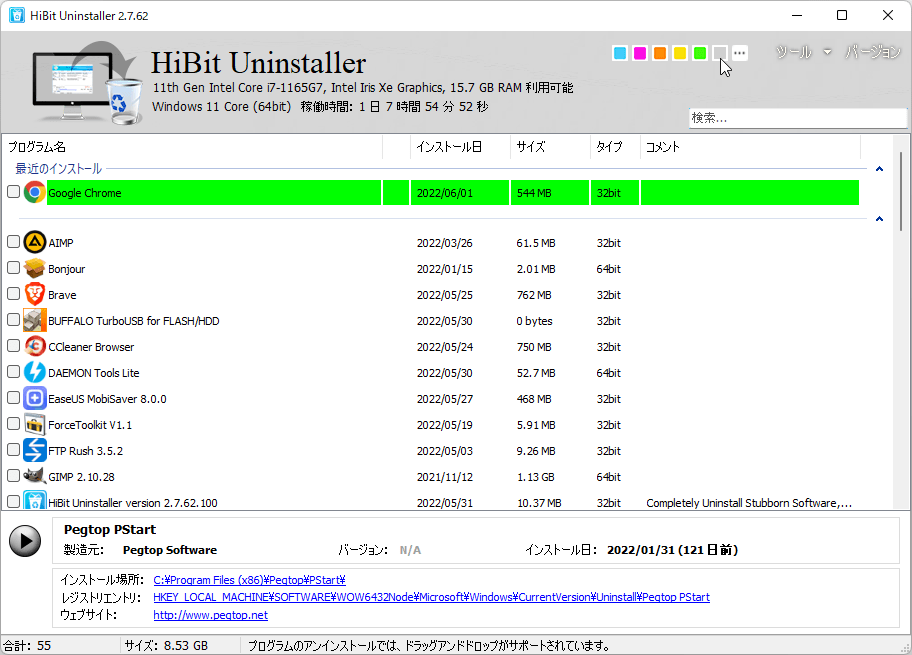
Installation monitor explained
Power users often install dozens of utilities, SDKs, or trial apps and then struggle to remember what touched the system when it is time to remove them. HiBit Uninstaller includes an installation monitor feature (described on the features section of the homepage) that records filesystem and registry activity while a setup runs so you have a clearer map when uninstalling later.
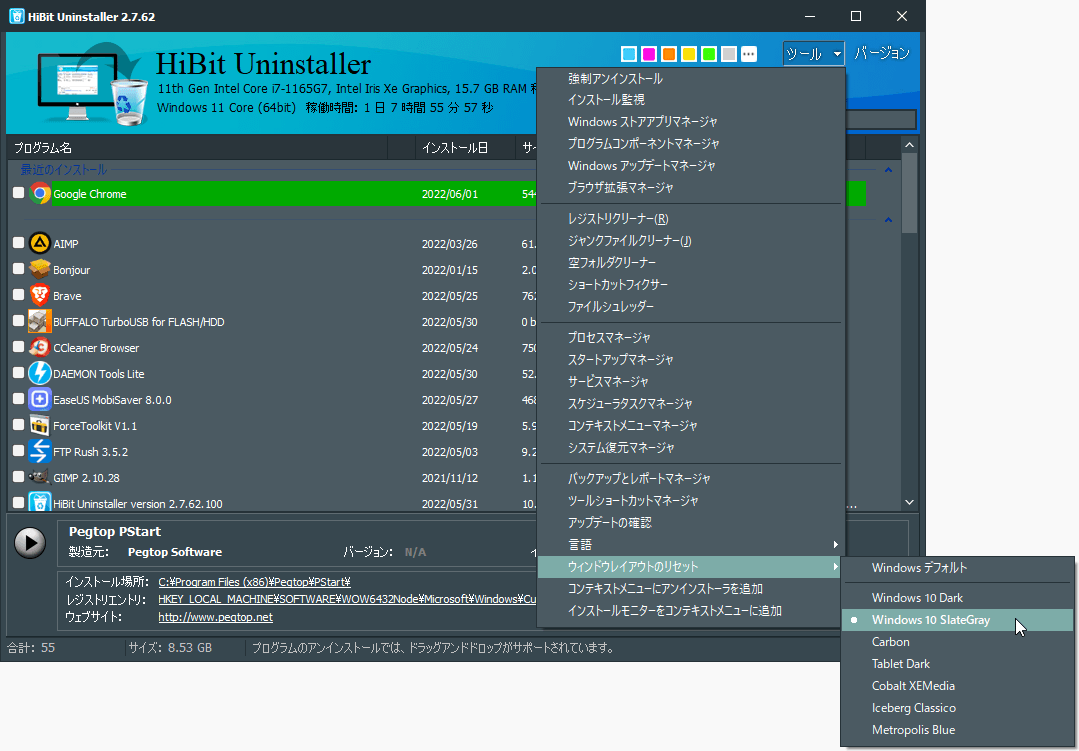
What the monitor is trying to solve
Standard uninstallers know about files they register explicitly, but many apps drop helpers under AppData, scheduled tasks, or shell extensions that are easy to miss. A monitor session captures a before-and-after style picture around the install window so you can correlate changes with that specific product instead of guessing from a generic leftover scan months later.
Typical workflow
- Start monitoring from HiBit before you launch the third-party installer.
- Complete the vendor setup normally—do not skip reboots if the vendor requires them, or the trace may be incomplete.
- Stop monitoring when the installer finishes and the app has been launched once if the vendor expects first-run configuration.
- Keep the log until you uninstall; when you remove the app, use the recorded paths as a sanity check alongside the built-in uninstaller and leftover scan.
What to capture in your notes
Even with a monitor log, a one-line human note saves time later. Record the installer filename, version, and whether you opted into bundled offers. If the product creates a Windows service, jot down the display name so you can search for it in Services after uninstall. Link those notes to the monitor session date so you can correlate traces when you clean five trial apps in one weekend.
Common mistakes
- Starting the installer first. If setup already wrote half the files, the “before” snapshot is useless—always arm monitoring before double-clicking the vendor EXE.
- Stopping too early. Some products defer DLL registration until first launch; close monitoring only after that first-run wizard completes.
- Ignoring reboots. If the vendor demands a restart, do it, then consider a short second monitoring window for the post-reboot configuration step.
- Trusting traces over judgment. A log shows what changed during a window; it does not prove every path is safe to delete if shared with other apps.
Limits to keep in mind
Monitoring is not a substitute for backups. If an installer launches services or drivers that only register after a reboot, you may need a second short monitoring pass. Some security products block tracing tools; temporarily adjusting policy may be required on managed PCs—always follow IT rules.
Pairing with batch and force workflows
If you later batch uninstall several trial apps, monitored installs make it easier to spot which folders were unique to each product. If a vendor uninstaller is broken, force uninstall plus a monitor-backed file list reduces the chance you delete a shared runtime another app still needs.
Privacy and scope
Monitoring observes local system changes relevant to the install; it is not a cloud telemetry feature. Logs stay on your machine unless you export them. This site is informational only—refer to the current product documentation for exact menu names in your build.