Restore point before uninstall
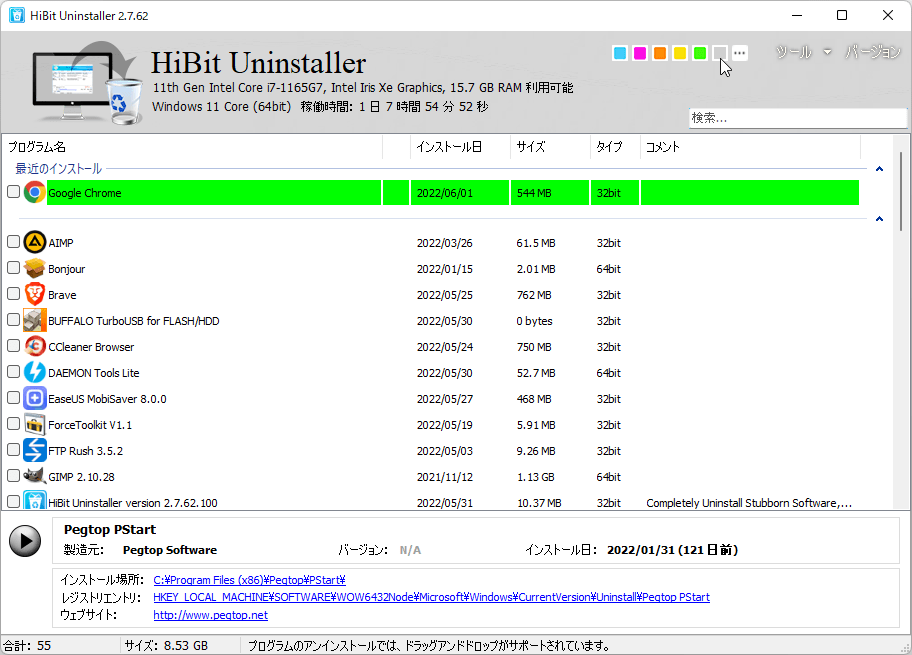
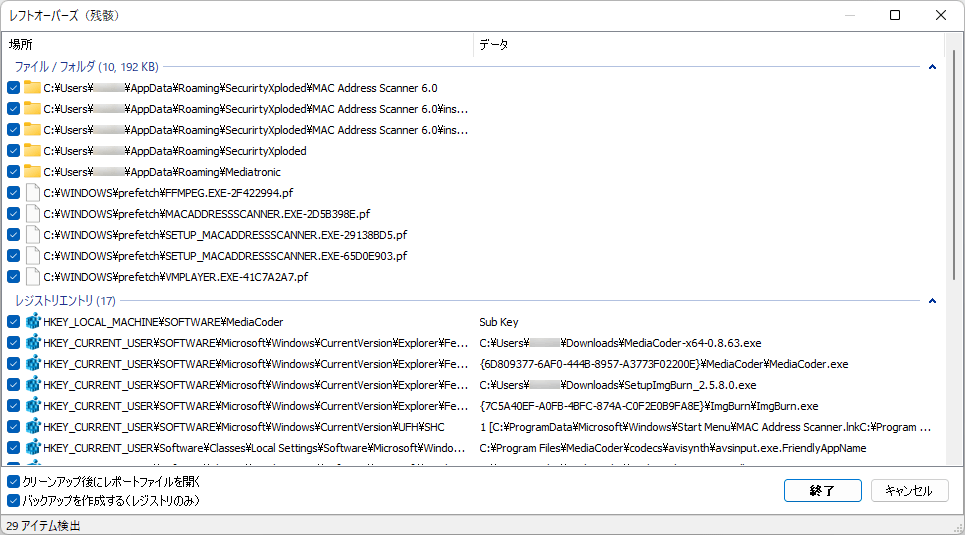
Removing software—especially with force uninstall or aggressive registry cleanup—can have wider effects than deleting a single folder. Creating a restore point in Windows gives you a coarse rollback lever if something critical breaks, while HiBit Uninstaller session backups (when available in your build) target finer-grained undo for registry edits made during a cleanup session.
What a restore point actually protects
System Restore snapshots certain system files, driver sets, and registry hives at a point in time. It is not a full disk image. User documents may be unaffected; some types of malware or disk corruption can also limit its usefulness. Still, for “I removed three drivers and now the NIC is gone” scenarios, it can save hours.
When to create one
- Before uninstalling security suites, VPN clients, or filter drivers that hook the network stack.
- Before bulk cleanup sessions where you plan to delete many registry keys after review.
- Before removing runtimes (Visual C++, .NET) where multiple desktop apps might share the same packages.
How to create a restore point (summary)
Open Create a restore point from Start, select your system drive, choose Create…, and label it (for example “Before removing XYZ”). On Windows 11 the path is typically Settings → System → About → System protection, or the classic Control Panel applet. Enterprise policies may disable protection—check with IT first.
When restore points are unavailable
Some corporate images disable System Restore to save disk space or meet security baselines. If you cannot create a point, fall back to a full image backup, a verified VM snapshot, or documented reinstall steps for critical drivers before you remove networking or storage software. HiBit session backups help with registry edits the tool makes, but they do not reinstall a deleted filter driver.
SSD space and retention
Restore points consume part of the protected volume’s allocation. On smaller SSDs, keep an eye on free space before marathon cleanup days. Windows rotates older points automatically; naming points clearly (“Before VPN removal – March”) makes it obvious which snapshot to pick if you must roll back.
Layering with HiBit workflows
The troubleshooting section on the homepage reminds readers to prefer line-by-line review during leftover scans. Session backups inside HiBit help revert changes tied to that tool’s operations; a restore point covers broader system drift. You can use both: snapshot Windows first, then enable per-session backup inside HiBit before ticking many registry boxes.
After the uninstall
If the PC is stable after reboot, old restore points eventually rotate out as new ones are created—you do not need to keep a pre-uninstall snapshot forever. If you had to roll back, document what was removed so you can retry with a narrower scope. For terminology, see the glossary.